ASP.NET WP – 将数据添加到数据库
ASP.NET WP – 将数据添加到数据库
在本章中,我们将介绍如何创建一个页面,让用户向数据库中的客户表添加数据。
-
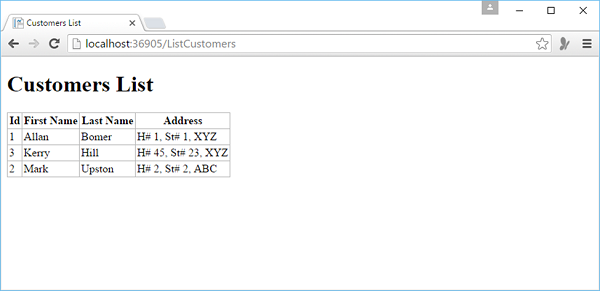
在此示例中,您还将了解何时插入记录,然后该页面使用我们在上一章中创建的 ListCustomers.cshtml 页面显示更新后的表。
-
在此页面中,我们还添加了验证以确保用户输入的数据对数据库有效。例如,用户已为所有必需的列输入数据。
如何向数据库中的客户表添加数据?
让我们向您的网站添加一个新的 CSHTML 文件。
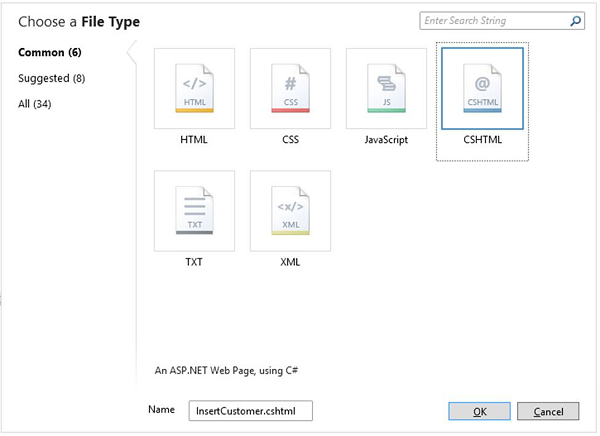
在名称字段中输入InsertCustomer.cshtml,然后单击确定。
现在创建一个新的网页,用户可以在其中在 Customers 表中插入数据,因此将 InsertCustomer.cshtml 文件替换为以下代码。
@{
   Validation.RequireField("FirstName", "First Name is required.");
   Validation.RequireField("LastName", "Last Name is required.");
   Validation.RequireField("Address", "Address is required.");

   var db = Database.Open("WebPagesCustomers");
   var FirstName = Request.Form["FirstName"];
   var LastName = Request.Form["LastName"];
   var Address = Request.Form["Address"];

   if (IsPost && Validation.IsValid()) {
      // Define the insert query. The values to assign to the
      // columns in the Customers table are defined as parameters
      // with the VALUES keyword.

      if(ModelState.IsValid) {
         var insertQuery = "INSERT INTO Customers (FirstName, LastName, Address) " +
            "VALUES (@0, @1, @2)";
         db.Execute(insertQuery, FirstName, LastName, Address);

         // Display the page that lists products.
         Response.Redirect("~/ListCustomers");
      }
   }
}

<!DOCTYPE html>
<html>

   <head>
      <title>Add Customer</title>
      <style type = "text/css">
         label {
            float:left;
            width: 8em;
            text-align:
            right;
            margin-right: 0.5em;
         }
         fieldset {
            padding: 1em;
            border: 1px solid;
            width: 50em;
         }
         legend {
            padding: 2px 4px;
            border: 1px solid;
            font-weight:bold;
         }
         .validation-summary-errors {
            font-weight:bold;
            color:red;
            font-size: 11pt;
         }
      </style>

   </head>
   <body>
      <h1>Add New Customer</h1>
      @Html.ValidationSummary("Errors with your submission:")

      <form method = "post" action = "">
         <fieldset>
            <legend>Add Customer</legend>
            <div>
               <label>First Name:</label>
               <input name = "FirstName" type = "text" size = "50" value = "@FirstName"/>
            </div>

            <div>
               <label>Last Name:</label>
               <input name = "LastName" type = "text" size = "50" value = "@LastName" />
            </div>

            <div>
               <label>Address:</label>
               <input name = "Address" type = "text" size = "50" value = "@Address" />
            </div>

            <div>
               <label> </label>
               <input type = "submit" value = "Insert" class = "submit" />
            </div>
         </fieldset>
      </form>

   </body>
</html>
现在让我们运行应用程序并指定以下 URL – http://localhost:36905/InsertCustomer,您将看到以下网页。
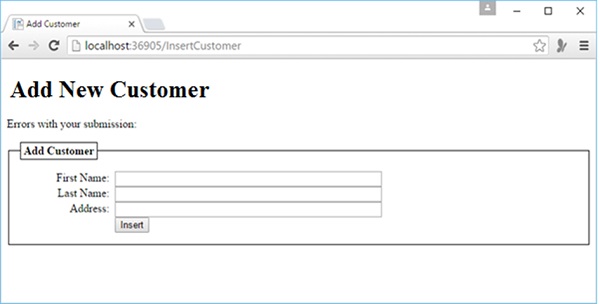
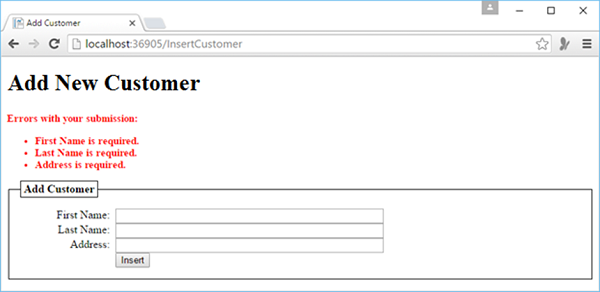
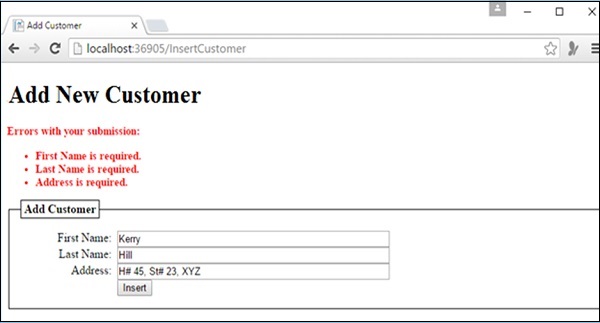
在上面的屏幕截图中,您可以看到我们添加了验证,因此您在不输入任何数据或错过任何上述字段的情况下单击插入按钮,您将看到它显示错误消息,如下面的屏幕截图所示。
现在让我们在所有字段中输入一些数据。
现在单击插入,您将看到更新的客户列表,如下面的屏幕截图所示。