Windows 10 开发 – 商店
Windows 10 开发 – 商店
Windows 应用商店对开发人员的好处是您可以销售您的应用程序。您可以为每个设备系列提交您的单一应用程序。
-
Windows 10 应用商店是提交应用程序的地方,以便用户可以找到您的应用程序。
-
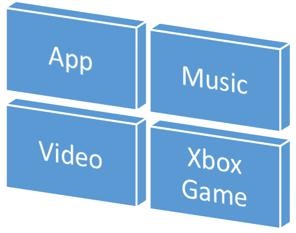
在 Windows 8 中,商店仅限于应用程序,微软提供了许多商店,例如 Xbox 音乐商店、Xbox 游戏商店等。
-
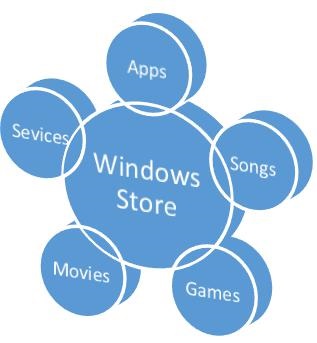
在 Windows 8 中,所有这些都是不同的商店,但在 Windows 10 中,它被称为 Windows 商店。它的设计方式是让用户可以在一个地方找到适用于所有 Windows 10 设备的全套应用程序、游戏、歌曲、电影、软件和服务。
货币化
货币化意味着在台式机、移动设备、平板电脑和其他设备上销售您的应用程序。您可以通过多种方式在 Windows 应用商店销售应用程序和服务以赚取收入。
您可以选择以下任何一种方法 –
-
最简单的方法是使用付费下载选项在商店提交您的应用程序。
-
Trails 选项,用户可以在购买之前试用您的应用程序,但功能有限。
-
使用 Microsoft Advertising 向您的应用添加广告。
微软广告
当您向应用程序添加广告并且用户点击该特定广告时,广告商将向您付款。Microsoft Advertising 允许开发人员从 Microsoft Advertising Network 接收广告。
-
适用于通用 Windows 应用程序的 Microsoft Advertising SDK 包含在 Visual Studio 2015 安装的库中。
-
您也可以从visualstudiogallery安装它
-
现在,您可以轻松地将视频和横幅广告集成到您的应用中。
让我们看一下 XAML 中的一个简单示例,使用AdControl在您的应用程序中添加横幅广告。
-
创建一个名为UWPBannerAd的新通用 Windows 空白应用项目。
-
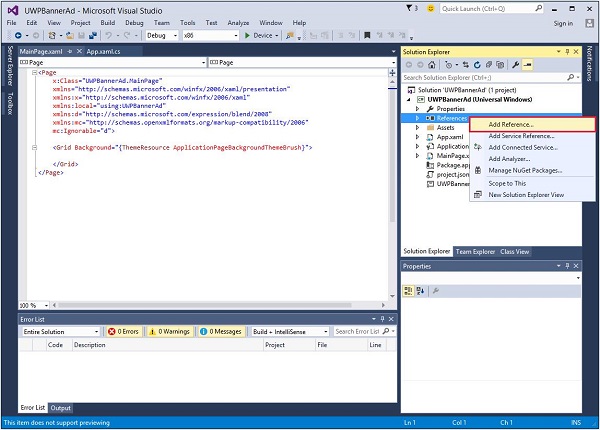
在解决方案资源管理器中,右键单击引用
-
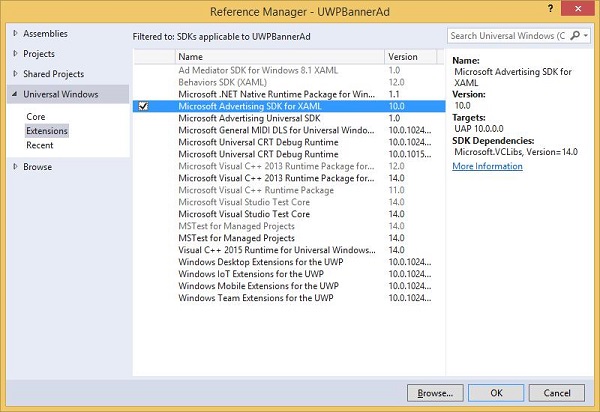
选择Add References,这将打开Reference Manager对话框。
-
在左侧窗格中,选择通用 Windows 下的扩展选项并选中Microsoft Advertising SDK for XAML。
-
单击确定继续。
-
下面给出的是 XAML 代码,其中添加了一些属性的AdControl。
<Page
   x:Class = "UWPBannerAd.MainPage"
   xmlns = "http://schemas.microsoft.com/winfx/2006/xaml/presentation"
   xmlns:x = "http://schemas.microsoft.com/winfx/2006/xaml"
   xmlns:local = "using:UWPBannerAd"
   xmlns:d = "http://schemas.microsoft.com/expression/blend/2008"
   xmlns:mc = "http://schemas.openxmlformats.org/markup-compatibility/2006"
   xmlns:UI = "using:Microsoft.Advertising.WinRT.UI"
   mc:Ignorable = "d">

   <Grid Background = "{ThemeResource ApplicationPageBackgroundThemeBrush}">
      <StackPanel HorizontalAlignment = "Center">
         <UI:AdControl ApplicationId = "d25517cb-12d4-4699-8bdc-52040c712cab"
            AdUnitId = "10043121" HorizontalAlignment = "Left" Height = "580"
            VerticalAlignment = "Top" Width = "800"/>
      </StackPanel>
   </Grid>

</Page>
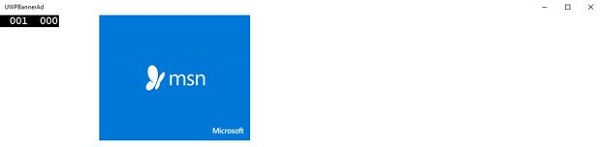
在本地机器上编译并执行上述代码后,您将看到以下带有 MSN 横幅的窗口。当您单击此横幅时,它将打开 MSN 站点。
您还可以在应用程序中添加视频横幅。让我们考虑另一个示例,当单击“显示广告”按钮时,它将播放 Xbox One 的视频广告。
下面给出的是 XAML 代码,我们在其中演示了如何为按钮添加一些属性和事件。
<Page
   x:Class = "UWPBannerAd.MainPage"
   xmlns = "http://schemas.microsoft.com/winfx/2006/xaml/presentation"
   xmlns:x = "http://schemas.microsoft.com/winfx/2006/xaml"
   xmlns:local = "using:UWPBannerAd"
   xmlns:d = "http://schemas.microsoft.com/expression/blend/2008"
   xmlns:mc = "http://schemas.openxmlformats.org/markup-compatibility/2006"
   xmlns:UI = "using:Microsoft.Advertising.WinRT.UI"
   mc:Ignorable = "d">

   <Grid Background = "{ThemeResource ApplicationPageBackgroundThemeBrush}">
      <StackPanel HorizontalAlignment = "Center">
         <Button x:Name = "showAd" Content = "Show Ad" HorizontalAlignment = "Left"
            Margin = "138,296,0,0" VerticalAlignment = "Top" FontSize = "48"
            Click = "showAd_Click"/>
      </StackPanel>
   </Grid>

</Page>
下面给出了 C# 中的单击事件实现。
using Microsoft.Advertising.WinRT.UI;
using Windows.UI.Xaml;
using Windows.UI.Xaml.Controls;

// The Blank Page item template is documented at
   http://go.microsoft.com/fwlink/?LinkId=402352&clcid=0x409

namespace UWPBannerAd {

   /// <summary>
      /// An empty page that can be used on its own or navigated to within a Frame.
   /// </summary>

   public sealed partial class MainPage : Page {
      InterstitialAd videoAd = new InterstitialAd();

      public MainPage() {
         this.InitializeComponent();
      }

      private void showAd_Click(object sender, RoutedEventArgs e) {
         var MyAppId = "d25517cb-12d4-4699-8bdc-52040c712cab";
         var MyAdUnitId = "11388823";
         videoAd.AdReady += videoAd_AdReady;
         videoAd.RequestAd(AdType.Video, MyAppId, MyAdUnitId);
      }

      void videoAd_AdReady(object sender, object e){
         if ((InterstitialAdState.Ready) == (videoAd.State)) {
            videoAd.Show();
         }
      }

   }

}
当上述代码在本地机器上编译和执行时,您将看到以下窗口,其中包含一个Show Ad按钮。
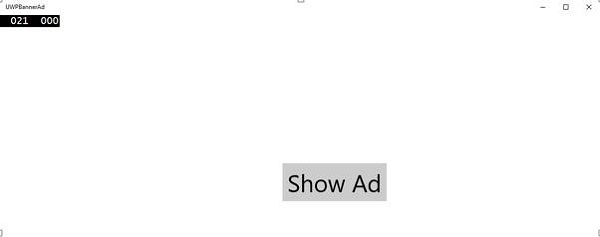
现在,当您点击Show Ad按钮时,它会在您的应用中播放视频。