ASP.NET Core – 设置 MVC
ASP.NET Core – 设置 MVC
在本章中,我们将在 FirstAppDemo 应用程序中设置 MVC 框架。我们将继续在 ASP.NET Core 之上构建 Web 应用程序,更具体地说,是在 ASP.NET Core MVC 框架上。从技术上讲,我们可以仅使用中间件来构建整个应用程序,但 ASP.NET Core MVC 为我们提供了可用于轻松创建 HTML 页面和基于 HTTP 的 API 的功能。
要在我们的空项目中设置 MVC 框架,请按照以下步骤操作 –
-
安装Microsoft.AspNet.Mvc包,它使我们可以访问框架提供的程序集和类。
-
安装包后,我们需要注册 ASP.NET MVC 在运行时需要的所有服务。我们将在ConfigureServices方法中执行此操作。
-
最后,我们需要为 ASP.NET MVC 添加中间件来接收请求。本质上,这个中间件接受一个 HTTP 请求,并尝试将该请求定向到我们将要编写的 C# 类。
第 1 步– 让我们通过右键单击“管理 NuGet 包”转到 NuGet 包管理器。安装 Microsoft.AspNet.Mvc 包,它使我们可以访问框架提供的程序集和类。
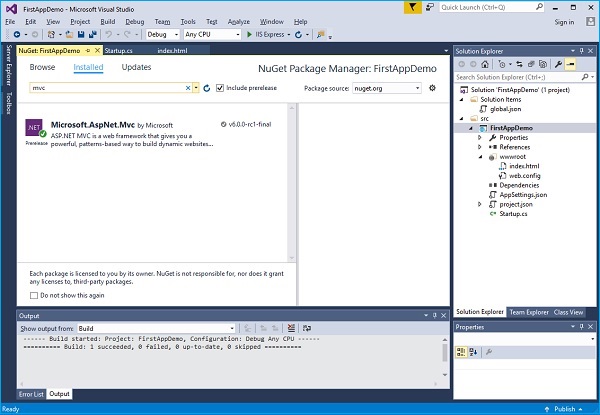
第 2 步– 一旦安装了 Microsoft.AspNet.Mvc 包,我们需要注册 ASP.NET Core MVC 在运行时需要的所有服务。我们将使用 ConfigureServices 方法执行此操作。我们还将添加一个简单的控制器,我们将看到该控制器的一些输出。
让我们向该项目添加一个新文件夹并将其命名为Controllers。在这个文件夹中,我们可以在解决方案资源管理器中放置多个控制器,如下所示。
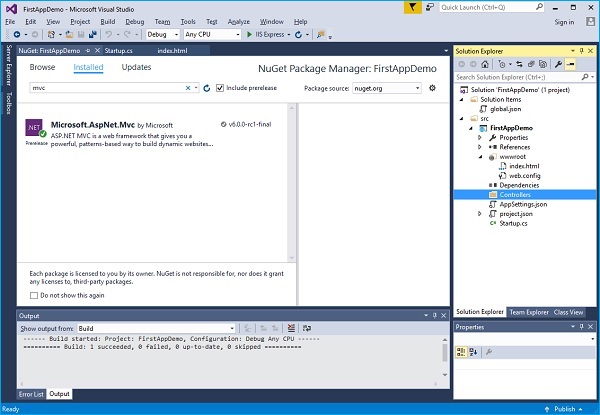
现在右键单击 Controllers 文件夹并选择Add → Class菜单选项。
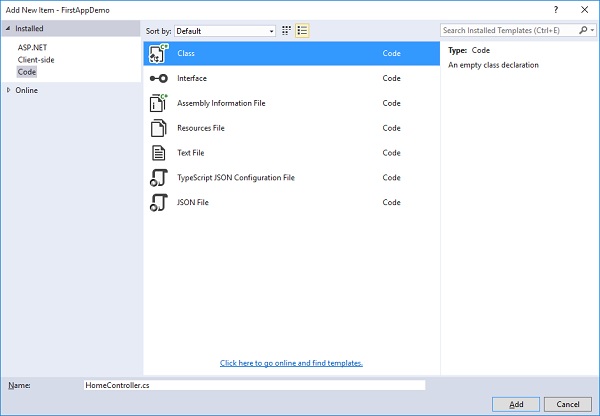
第 3 步– 在这里我们要添加一个简单的C#类,并调用这个类HomeController然后点击添加按钮,如上图所示。
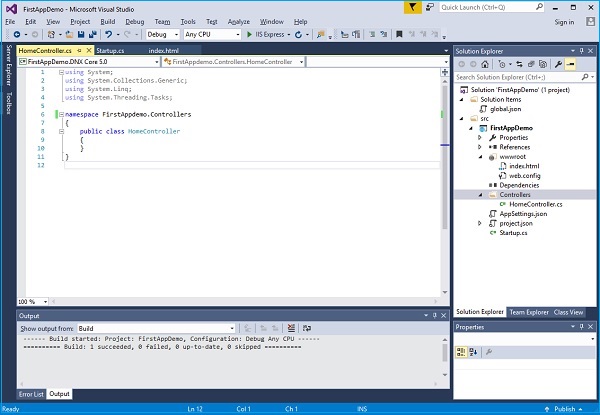
这将是我们的默认页面。
第 4 步– 让我们定义一个返回字符串的公共方法并调用该方法 Index,如下面的程序所示。
using System;
using System.Collections.Generic;
using System.Linq;
using System.Threading.Tasks;

namespace FirstAppdemo.Controllers {
   public class HomeController {
      public string Index() {
         return "Hello, World! this message is from Home Controller...";
      }
   }
}
第 5 步– 当您转到网站的根目录时,您希望看到控制器响应。到目前为止,我们将提供 index.html 文件。
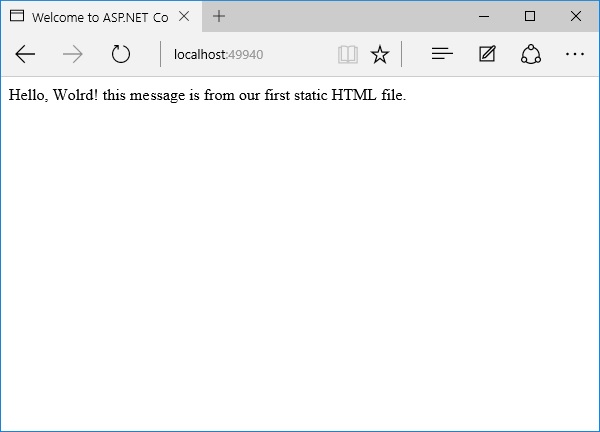
让我们进入网站的根目录并删除 index.html。我们希望控制器响应而不是index.html文件。
第 6 步– 现在转到 Startup 类中的 Configure 方法并添加UseMvcWithDefaultRoute中间件。
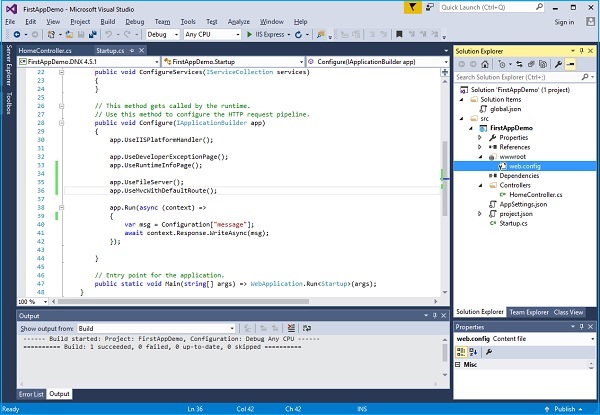
第 7 步– 现在刷新网站根目录下的应用程序。
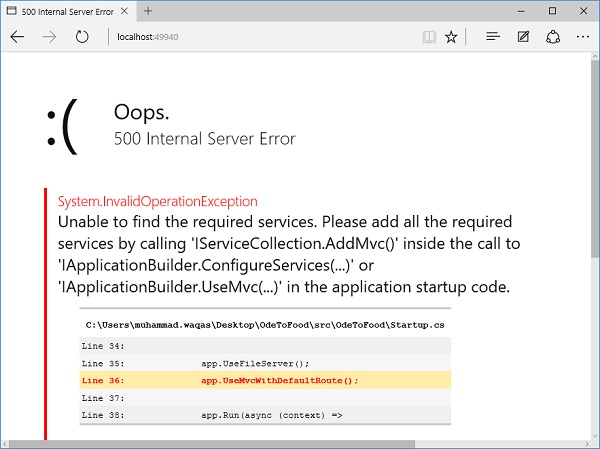
您将遇到 500 错误。该错误表示框架无法找到所需的 ASP.NET Core MVC 服务。
ASP.NET Core 框架本身由不同的小组件组成,这些小组件的职责非常明确。
例如,有一个组件必须定位和实例化控制器。
该组件需要位于 ASP.NET Core MVC 的服务集合中才能正常运行。
第 8 步– 除了添加 NuGet 包和中间件之外,我们还需要在 ConfigureServices 中添加 AddMvc 服务。这是 Startup 类的完整实现。
using Microsoft.AspNet.Builder;
using Microsoft.AspNet.Hosting;
using Microsoft.AspNet.Http;

using Microsoft.Extensions.DependencyInjection;
using Microsoft.Extensions.Configuration;

namespace FirstAppDemo {
   public class Startup {
      public Startup() {
         var builder = new ConfigurationBuilder() .AddJsonFile("AppSettings.json");
         Configuration = builder.Build();
      }
      public IConfiguration Configuration { get; set; }

      // This method gets called by the runtime.
      // Use this method to add services to the container.
      // For more information on how to configure your application,
      // visit http://go.microsoft.com/fwlink/?LinkID=398940
      public void ConfigureServices(IServiceCollection services) {
         services.AddMvc();
      }

      // This method gets called by the runtime.
      // Use this method to configure the HTTP request pipeline.
      public void Configure(IApplicationBuilder app) {
         app.UseIISPlatformHandler();

         app.UseDeveloperExceptionPage();
         app.UseRuntimeInfoPage();

         app.UseFileServer();
         app.UseMvcWithDefaultRoute();

         app.Run(async (context) => {
            var msg = Configuration["message"];
            await context.Response.WriteAsync(msg);
         });
      }

      // Entry point for the application.
      public static void Main(string[] args) => WebApplication.Run<Startup>(args);
   }
}
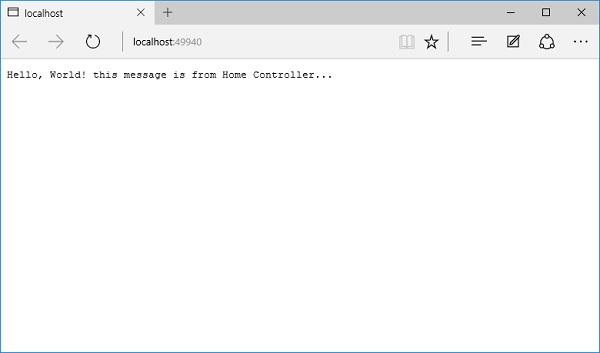
步骤 9 – 保存Startup.cs文件并转到浏览器并刷新它。您现在将收到来自我们的家庭控制器的响应。