水平导航
水平导航
在本章中,我们将学习如何向网站添加水平导航或菜单项。
步骤 1 – 要创建菜单项或水平导航,让我们在包含菜单项列表的 index.html 文件的<div id = “top-nav”>中添加以下代码。
<div id = "top-nav">
   <ul>
      <li></li>
      <li></li>
      <li></li>
      <li></li>
   </ul>
</div>
第 2 步– 这是顶部菜单的简单项目符号列表。要创建超链接,请转到设计视图或代码视图。
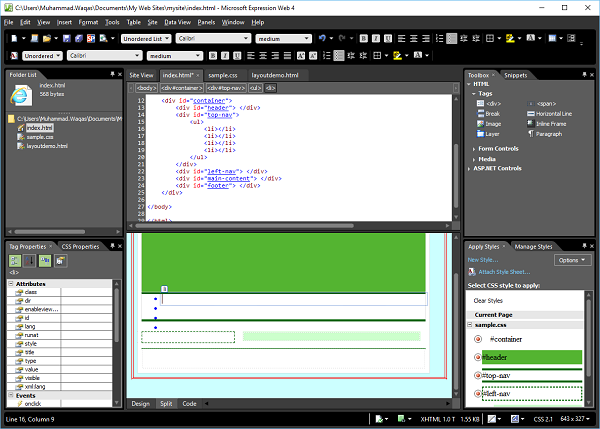
步骤 3 – 选择要用作超链接的项目,然后按 Ctrl + K。
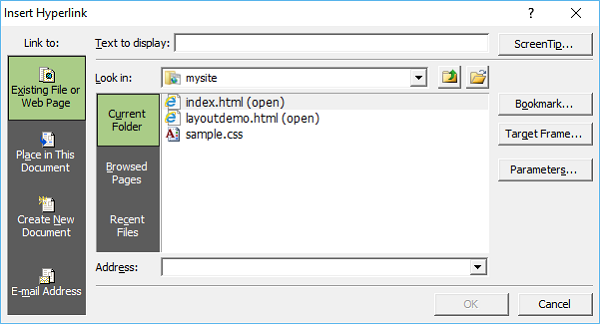
步骤 4 – 单击屏幕提示…按钮。
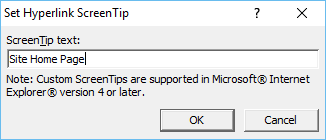
步骤 5 – 输入您想要的文本作为屏幕提示,然后单击确定。
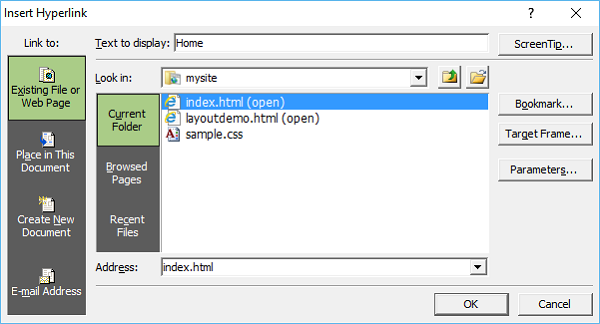
步骤 6 – 在要显示的文本字段中,输入主页并选择 index.html 文件,然后单击确定。
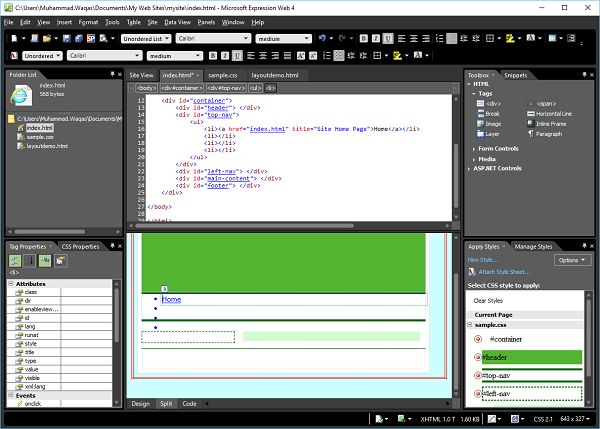
Step 7 – 同样,为其他菜单项添加超链接,如下面的代码所示。
<!DOCTYPE html PUBLIC "-//W3C//DTD XHTML 1.0 Transitional//EN"
   "http://www.w3.org/TR/xhtml1/DTD/xhtml1-transitional.dtd">
<html xmlns = "http://www.w3.org/1999/xhtml">
   <head>
      <meta content = "text/html; charset=utf-8" http-equiv = "Content-Type" />
      <style type = "text/css"></style>
      <link href = "sample.css" rel="stylesheet" type = "text/css" />
   </head>

   <body>
      <div id = "container">
         <div id = "header"></div>
         <div id = "top-nav">
            <ul>
               <li><a href = "index.html" title = "Site Home Page">Home</a></li>
               <li><a href = "index.html" title = "Menu Item 1.">Menu Item 1</a></li>
               <li><a href = "index.html" title =  "Menu Item 2.">Menu Item 2</a></li>
               <li><a href = "index.html" title = "Menu Item 3.">Menu Item 3</a></li>
            </ul>
         </div>
         <div id = "left-nav"> </div>
         <div id = "main-content"> </div>
         <div id = "footer"> </div>
      </div>
   </body>
</html>
步骤 8 – 要设置顶部导航的样式,请转到“管理样式”面板。
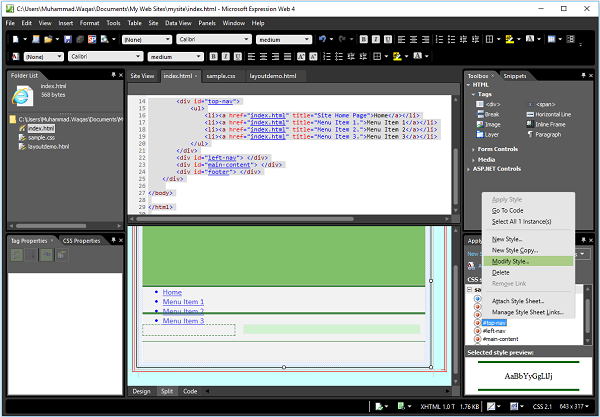
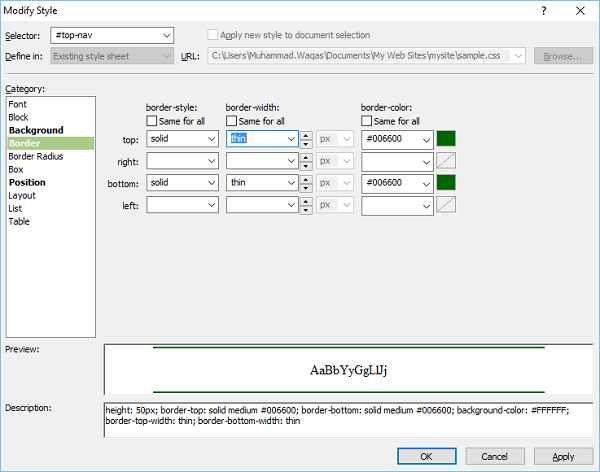
步骤 9 – 右键单击“#top-nav”并选择修改样式。选择“边框”类别并将宽度更改为细。
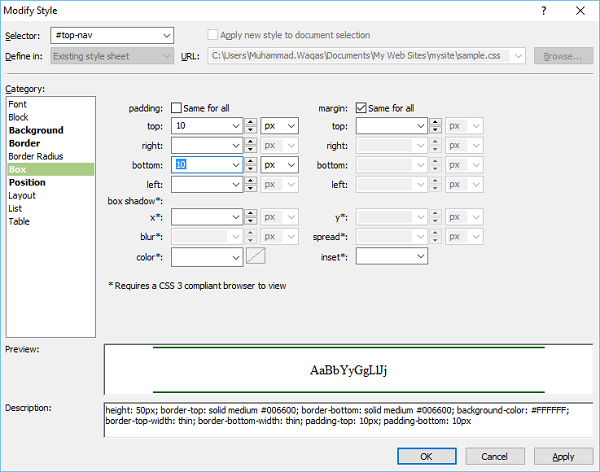
步骤 10 – 选择 Box 类别并取消选中填充“全部相同”并在顶部和底部字段中输入 10。
步骤 11 – 转到位置类别。
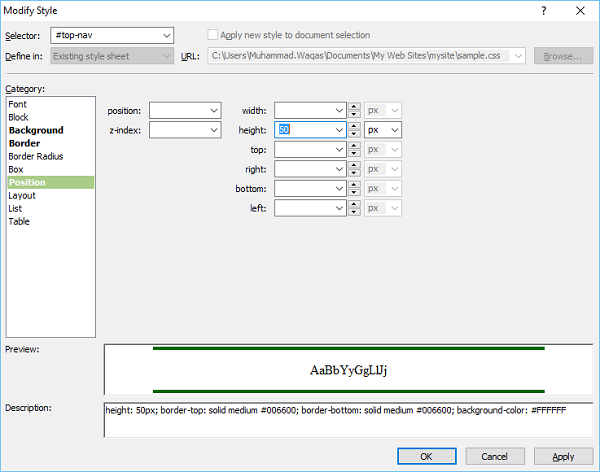
步骤 12 – 从高度字段中删除 50 ,然后单击确定。从应用样式面板中,单击新建样式…
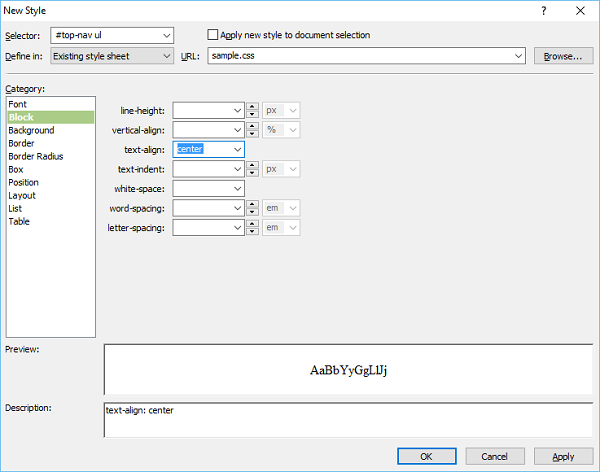
步骤 13 –在 Selector 字段中输入#top-nav ul并从“Define in”下拉列表中选择现有样式表。在 Block 类别中,从 test-align 字段中选择 center 并转到 List 类别。
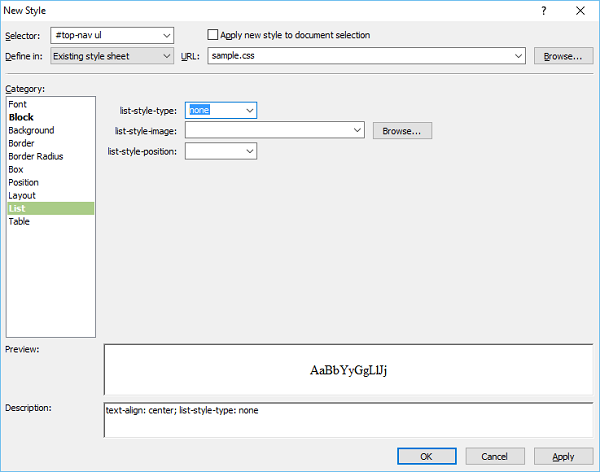
步骤 14 –从列表样式类型字段中选择无,然后单击确定。
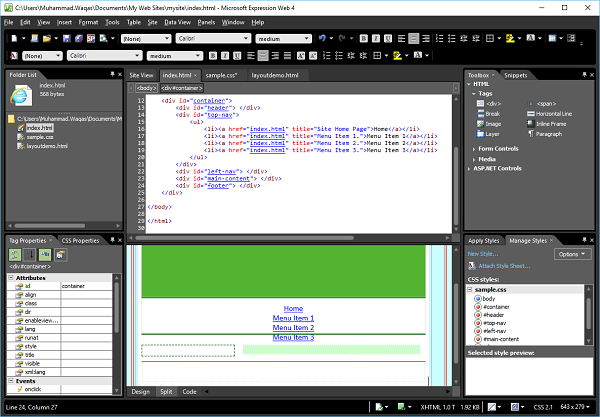
第 15 步– 再次从“应用样式”面板中,单击“新建样式…”在“选择器”字段中输入#top-nav ul li。然后从“Define in”下拉列表中选择 Existing style-sheet 并转到 Layout 类别。
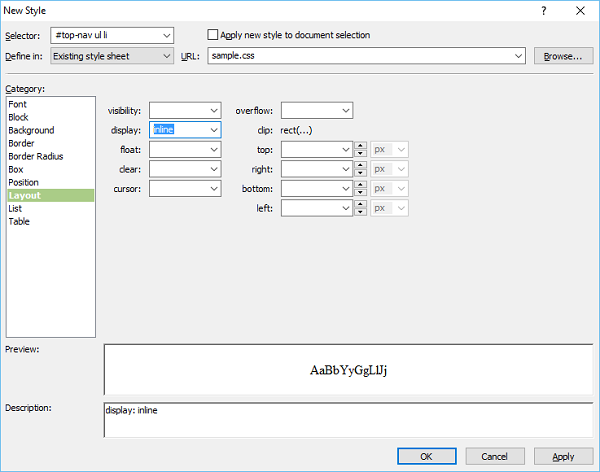
步骤 16 –从显示字段中选择内联,然后单击确定。
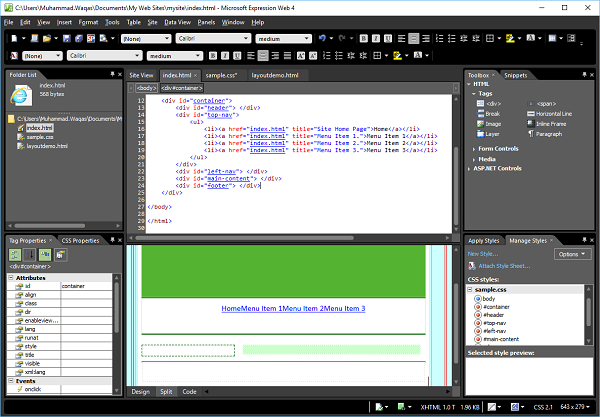
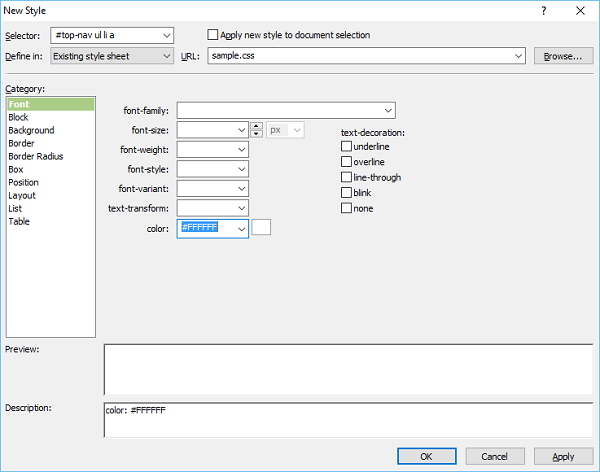
第 17 步– 转到“应用样式”面板,单击“新建样式…”在“选择器”字段中输入#top-nav ul li a,然后从“定义于”下拉列表中选择现有样式表,然后选择白色作为字体颜色。
步骤 18 – 转到背景类别。
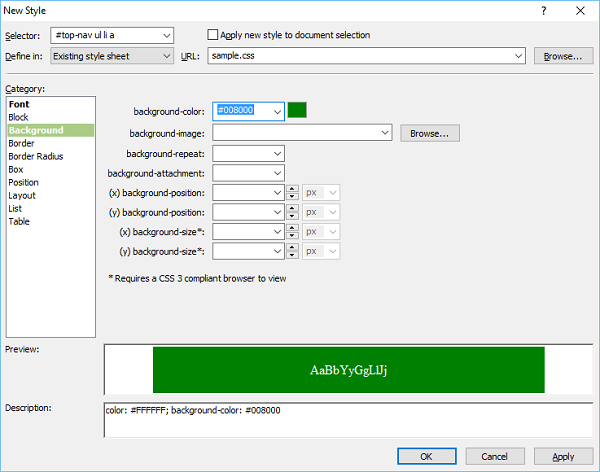
步骤 19 – 选择绿色作为背景色并转到Box 类别。
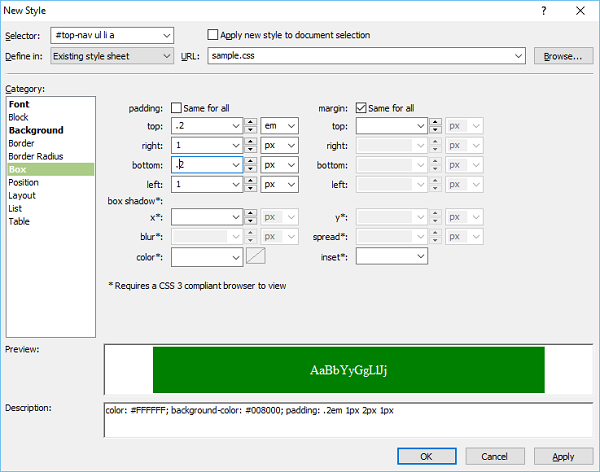
步骤 20 – 设置填充值并单击确定。
第 21 步– 现在让我们再次转到“应用样式”面板并单击“新建样式”。在 Selector 字段中输入#topnav ul li a:hover并从“Define in”下拉列表中选择 Existing style sheet 并选择black作为字体颜色。
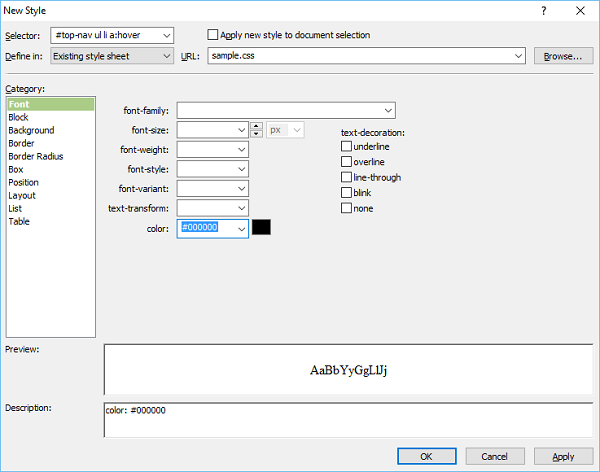
步骤 22 – 现在转到背景类别。
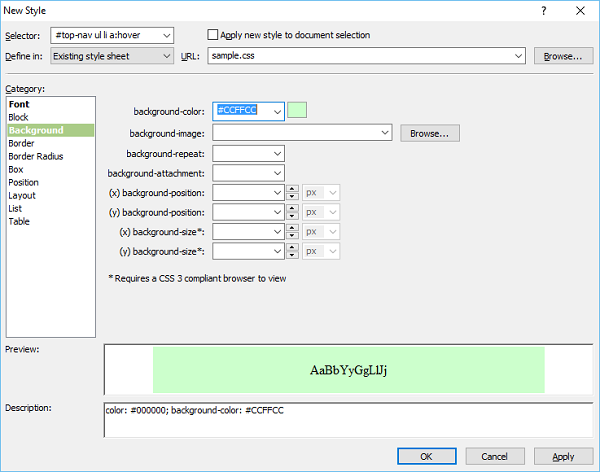
步骤 23 – 当鼠标悬停在菜单项上时,选择菜单选项的背景颜色并转到边框类别。
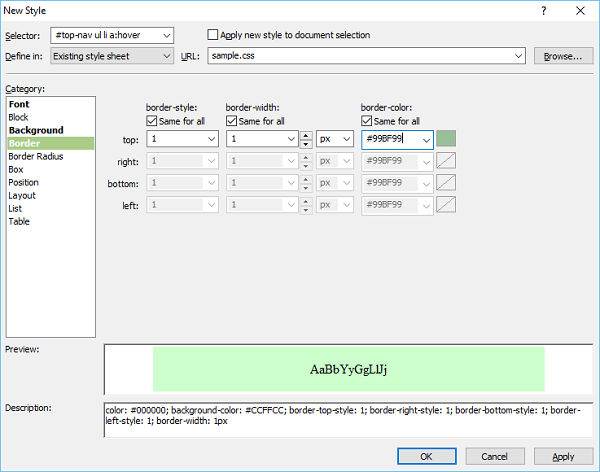
步骤 24 – 选择边框样式、宽度和颜色,然后单击确定。要检查它的外观,请转到“文件”菜单并选择“在浏览器中预览”。
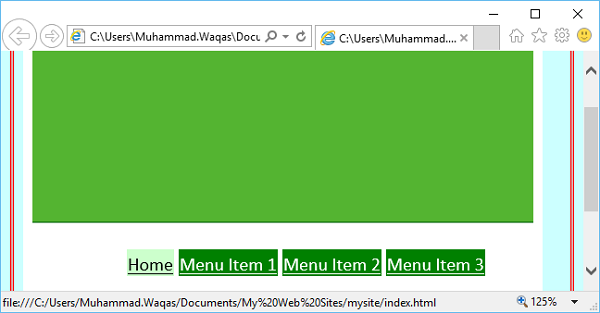
当您将鼠标悬停在任何菜单项上时,它会更改背景和字体颜色。
